
Productivity
Notion Review 2026
Our verdict: Notion is the most flexible productivity app on Android — part notes, part database, part wiki — but its power comes with a real learning curve.
Notion promises to replace your notes app, your to-do list, your wiki, and your spreadsheet — and in 2026 it comes closer than ever. At its core, Notion is a workspace built from blocks: every paragraph, checkbox, image, and embedded file is a movable piece you can rearrange, nest, and link. That simple idea scales from a daily journal to a full company knowledge base, all inside one app.
We have used Notion daily for months — on Android, desktop, and web — to find out whether the hype survives contact with real work. This review covers what it does, the features that matter, what it costs, where it falls short, and who should actually adopt it.
What Notion does
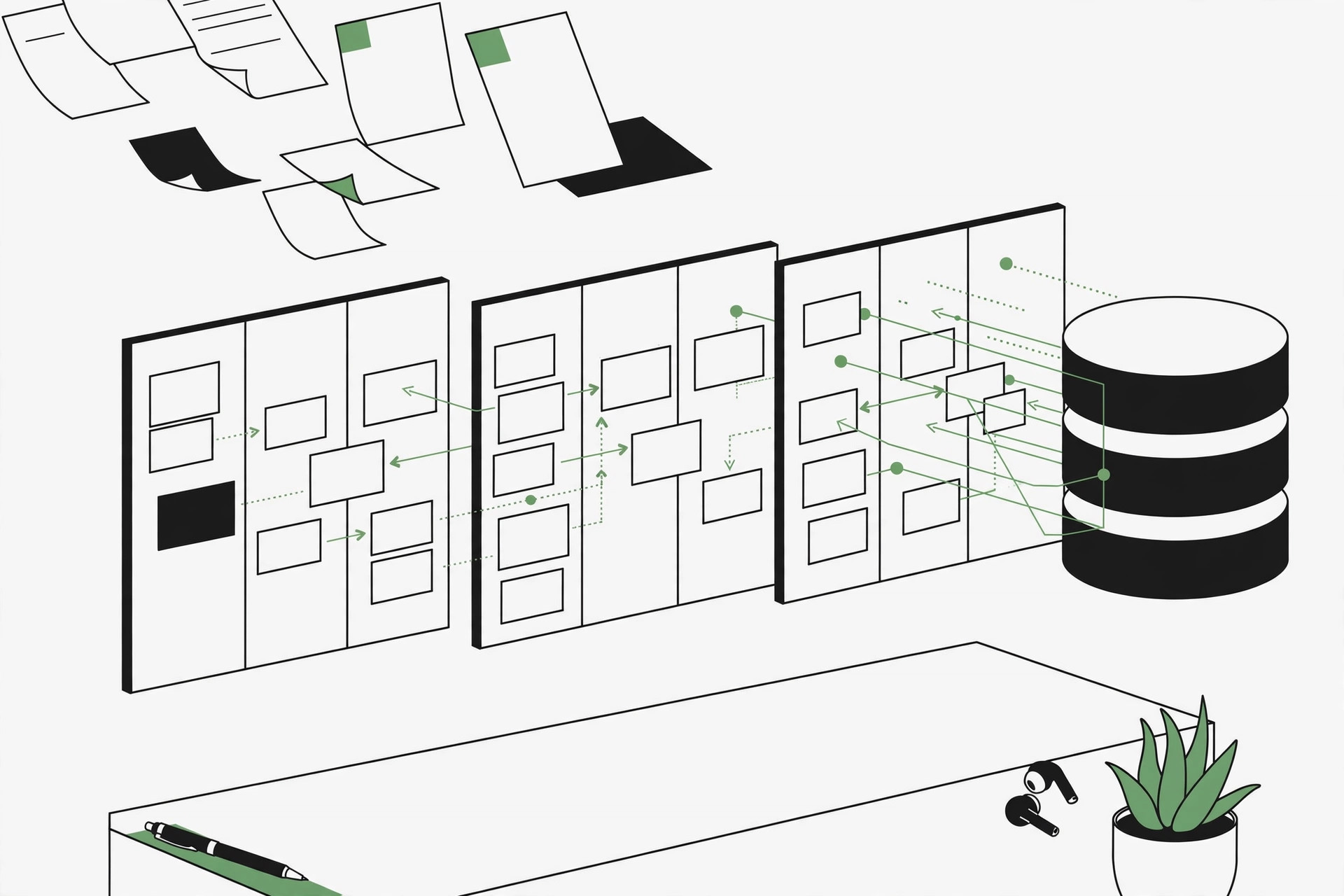
Think of Notion as digital Lego for your work. You start with a blank page and add blocks: text, headings, to-do lists, tables, calendars, kanban boards, and more. Blocks can be turned into databases — a table of tasks that also displays as a calendar or a board, all showing the same live data. Pages can live inside pages, creating a wiki-like structure that grows with you. Because everything syncs across Android, iOS, desktop, and web, your workspace follows you everywhere.
The Android app has improved substantially and now handles most daily work comfortably: quick capture, checking off tasks, and editing pages all feel smooth. Heavy database building is still easier on desktop, but for day-to-day use the mobile app holds its own.
Standout features
Blocks and databases
The block system is Notion's superpower. A meeting-notes page can contain a task database filtered to your action items, an embedded calendar, and a linked summary — all editable in place. Databases support table, board, timeline, calendar, gallery, and list views, so the same project data can be viewed however suits the moment.
Templates and the template gallery
Notion ships with solid built-in templates — meeting notes, habit trackers, project roadmaps — and its community gallery adds thousands more. Templates are the fastest way past the blank-page problem: starting from a well-made one rather than from scratch makes the difference between adopting Notion and abandoning it.
Notion AI
Notion AI is woven into the editor: summarize long pages, draft text, fix grammar, translate, and generate tables from a prompt. It is genuinely useful for turning messy meeting notes into action items. AI is a paid add-on on most plans, so factor that into the cost.
Collaboration
Real-time editing, comments, mentions, and page-level permissions make Notion a credible team workspace. Small teams use it as a wiki, sprint board, and docs hub in one, and guest access makes it easy to collaborate with outsiders too.
Sync and integrations
Everything syncs across devices in near real time, and Notion connects with Google Calendar, Slack, GitHub, and dozens of other tools, with an API for custom workflows if you are technically inclined.
Pricing tiers
Notion's free plan is genuinely generous: unlimited pages and blocks for individual use. Most personal users — students, freelancers, hobbyists — will never need to pay.
- Free ($0): unlimited pages and blocks, basic collaboration, 5 MB file uploads
- Plus (~$10 per user/month, ~$96 billed annually): unlimited file uploads, 30-day version history, more guests — the sweet spot for serious personal use and small teams
- Business (~$15 per user/month): advanced permissions, 90-day version history, private teamspaces
- Enterprise (custom pricing): audit logs, advanced security, and dedicated support
Notion AI is an add-on of roughly $10 per user per month on paid plans; students and educators can get the Plus plan free with an academic email, which is one of the best deals in software.
Who it's for
Notion is ideal for people who enjoy building systems: freelancers tracking clients and projects, students organizing coursework, small teams wanting a shared wiki and task board in one place, and anyone whose notes have outgrown a simple list. If you like one workspace for tasks, notes, and reference material — and will invest an afternoon learning it — Notion will reward you.
It is not for everyone. If you want the fastest possible note capture, a dedicated notes app will beat Notion every time — see our roundup of the best note-taking apps for quicker alternatives. And if your work lives in your calendar, pair Notion with one of the best calendar apps rather than forcing Notion's calendar views to do everything.
Getting started with Notion
- Install and sign up. Download Notion from the Play Store, create a free account, and pick a starter use case — notes, tasks, or a personal wiki.
- Start from a template. Do not begin with a blank page. Browse the template gallery for something close to your need — a to-do list, a reading tracker, a project board — and duplicate it.
- Learn the slash command. Type "/" anywhere to insert blocks: headings, checklists, tables, embeds. This one habit unlocks most of Notion's speed.
- Build one database. Turn a simple list — books to read, job applications, habit tracker — into a database and try the board and calendar views. This is where Notion clicks for most people.
- Link pages together. Use @-mentions and linked databases to connect related pages, and build a personal dashboard linking your tasks, notes, and calendar as your daily home base.
What we like
- Unmatched flexibility — notes, tasks, databases, and wikis in one workspace
- Generous free plan with unlimited pages and blocks
- Powerful database views: table, board, timeline, calendar, and gallery
- Excellent real-time collaboration for teams
What could be better
- Steep learning curve — the blank page can be intimidating
- Can feel slow with very large databases or media-heavy pages
- Offline support is limited compared with native notes apps
- No true end-to-end encryption for your data
- Notion AI costs extra on top of paid plans
Free to download — links go to the official Google Play Store listing. We never host APK files.
Frequently asked questions
Is Notion free?
Yes, Notion's free plan is genuinely generous for personal use, with unlimited pages and blocks. Paid plans add collaboration features, larger file uploads, version history, and AI.
Does Notion work offline?
Partially. Notion caches pages you have recently opened so you can view and edit them offline, but you cannot reliably browse your whole workspace without a connection, and syncing requires going back online.
Is Notion better than a simple notes app?
It depends. If you want linked databases, project trackers, and wikis in one place, Notion wins easily. If you just want fast, simple note capture, a dedicated notes app is quicker — see our best note-taking apps roundup.
Can I use Notion for team collaboration?
Yes. Notion supports real-time collaboration, comments, permissions, and shared workspaces, making it a solid lightweight alternative to a company wiki or project tracker for small and mid-sized teams.