
Photo & Video
Lightroom Review 2026
Our verdict: Lightroom is the most capable photo editor you can run on a phone — true RAW editing, pro-grade color tools, and edits that sync everywhere. The subscription is the catch, but the free tier handles basic edits well.
Adobe Lightroom is where phone photos go when they need more than a filter. While most free editors offer sliders and presets, Lightroom gives you the same color science professionals use in studios: selective masks, lens corrections, tone curves, and RAW development — all running on your Android phone, with every edit syncing automatically to desktop and web.
We edited hundreds of photos in Lightroom over several weeks — phone shots, RAW files from a mirrorless camera, and old JPEGs — to find out whether the free tier is enough, where the premium paywall sits, and whether it beats the free competition. This review covers what it does, the features that matter, what it costs, where it falls short, and who should actually use it.
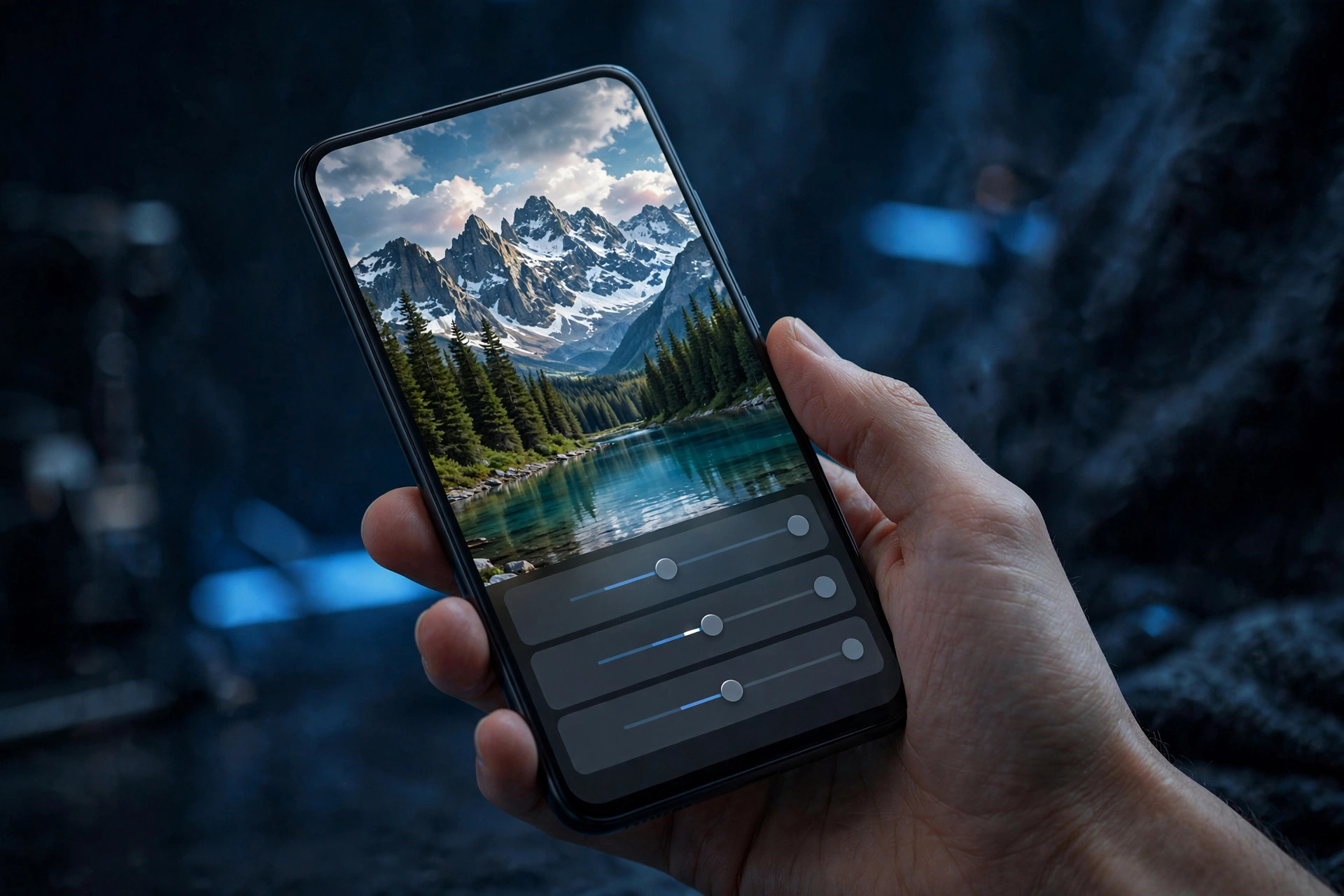
What Lightroom does
Lightroom is a non-destructive photo editor and organizer. You import photos — from your phone's gallery, your camera, or the built-in RAW camera — and edit them with sliders for light, color, detail, and geometry. Every change is a live instruction rather than a baked-in pixel change, so you can undo or adjust anything at any time without losing quality.
The killer feature is sync: an edit you make on your phone appears instantly in the desktop app and web library. Photographers shooting with a real camera can import RAW files, batch-edit an entire shoot with one preset, and finish on the phone during the commute. Nothing in the free tier of any rival app matches that end-to-end workflow.
Standout features
Selective masking
Masks are what separate Lightroom from every free editor. Instead of editing the whole image, you paint adjustments onto the sky, the subject, or the background — or let AI auto-select them in one tap. Brightening a person's face while darkening a blown-out sky, from a phone, in under a minute, is genuinely impressive and something Snapseed can only approximate.
RAW development
Lightroom's mobile app can shoot RAW/DNG with its own camera and import RAW files from a mirrorless camera. That means professional-level headroom: recovering shadows, fixing white balance, and pulling detail out of highlights that a JPEG would have thrown away. If you own a real camera, this alone justifies the app.
Presets and profiles
Presets are Lightroom's one-tap looks — and unlike Instagram filters, you can see every slider they change and tweak them afterward. The community ecosystem is enormous: thousands of free and paid preset packs, from film emulations to cinematic travel looks. You can also create your own preset from a finished edit and apply it to hundreds of photos at once.
Healing and remove tools
The content-aware remove brush erases tourists, trash cans, and sensor dust with results that are shockingly clean on mobile. It works on complex backgrounds better than any free rival, and the healing slider lets you control how much of the original texture survives. Premium only, but it is one of the features people end up paying for.
Geometry and lens corrections
Auto straightening, perspective correction, and lens profiles fix the optical flaws phones and cameras introduce: warped horizons, converging building lines, and barrel distortion. The Upright tool can make a crooked phone shot of a building look architecturally straight with a single tap — a quiet feature that makes a huge difference in travel photography.
Pricing tiers
The free mobile app is a solid editor on its own: the full light/color/detail sliders, cropping, profiles, and a preset library all work without paying. The subscription unlocks the pro tools and cloud storage.
- Free ($0): full editing sliders, crop and straighten, presets and profiles, basic export — no cloud sync
- Lightroom plan ($12.99/month, 1 TB): selective masks, healing brush, RAW camera import, cloud sync across all devices, web galleries
- Photography plan ($19.99/month, 1 TB): everything above plus Lightroom Classic and Photoshop on desktop
- All Apps ($69.99/month): the full Adobe suite — overkill unless you need Premiere or Illustrator too
Prices rise quietly: Adobe has increased plan prices in recent years, and the subscription never stops. If you cancel, you keep your photos but lose premium edits applied after cancellation. Students can get the entire suite for a fraction of the price — check Adobe's education discount before paying full price.
Who it's for
Lightroom is ideal for anyone who takes photography seriously on their phone: travel photographers, creators, realtors shooting listings, and anyone with a mirrorless camera who wants a mobile workflow. If you shoot RAW or edit more than a handful of photos a week, it is the best tool in its class.
It is not for everyone. If you just want to brighten a selfie and add a filter, Snapseed or the free filters in Google Photos are faster and completely free — see our roundup of the best photo editor apps for lighter alternatives. And if you hate subscriptions on principle, Lightroom will frustrate you, because the best features are firmly paywalled.
Getting started with Lightroom
- Install and sign in. Download Lightroom from the Play Store and create a free Adobe account. You get the full free editor immediately; no card required.
- Edit one photo with just the sliders. Open a photo, tap Light, and drag Exposure, Shadows, and Highlights until it looks right — then do the same under Color. Learning the sliders before touching presets teaches you what good edits actually look like.
- Try one mask. Tap Masking, choose Select Subject, and brighten just the person. This single skill puts your edits ahead of 95% of phone photographers.
- Copy an edit across a set. Finish one photo, tap the three dots, choose Copy Settings, then paste onto every similar shot. Batch editing is Lightroom's superpower.
- Decide about the subscription after two weeks. Use the free tier on real photos first. Pay only when you keep hitting the healing brush, masking, or cloud-sync walls — most enthusiasts do within a month.
What we like
- Best-in-class mobile photo editing — true RAW support and pro color tools
- Selective AI masking puts edits exactly where you want them
- Cloud sync means edits follow you from phone to desktop automatically
- Free tier is genuinely useful, not a neutered demo
- Massive preset ecosystem for one-tap looks you can fully customize
What could be better
- Best features (masks, healing, RAW camera) sit behind a subscription
- Ongoing cost adds up — no one-time purchase option
- Learning curve is steeper than Snapseed or VSCO
- Cloud sync and RAW import need a decent internet connection
- Canceling means losing premium-only edits on future exports
Free to download — links go to the official Google Play Store listing. We never host APK files.
Frequently asked questions
Is Adobe Lightroom free?
Lightroom's mobile app is free to download and includes the core editing sliders, cropping, and a set of presets. The premium features — healing brush, selective masking, RAW import from the camera, and cloud sync — require a Lightroom plan, which starts at $12.99 per month including 1 TB of cloud storage.
What is the difference between Lightroom and Lightroom Classic?
Lightroom (the cloud version) stores your photos online and syncs edits across phone, tablet, and desktop automatically. Lightroom Classic is desktop-only, stores photos locally, and has the full professional toolset including batch workflows and advanced tethering. Most mobile users want the cloud version.
Can Lightroom edit RAW photos on Android?
Yes — and it is one of the best RAW editors on Android. With a premium plan you can import RAW files straight from your camera or shoot RAW/DNG in Lightroom's built-in camera, then apply the full editing toolset non-destructively.
Is Lightroom better than Snapseed or VSCO?
For serious color work and batch editing, Lightroom is clearly stronger than Snapseed or VSCO — selective masking, lens corrections, and cloud-synced edits put it in a different league. Snapseed is still excellent for quick one-off edits for free, and VSCO wins if you mainly want film-style preset looks.